You can access details of the learner's contacts (for example: parents, carers, emergency contacts, assessors and so on) by selecting the Contacts tab in the left-hand pane.

You must have the EBS4FamilyContacts licence and one of the following roles to use the Contacts tab:
- Full Contacts
- View Contacts
This will open the Contacts tab, with the Contact Details sub-tab displayed by default.
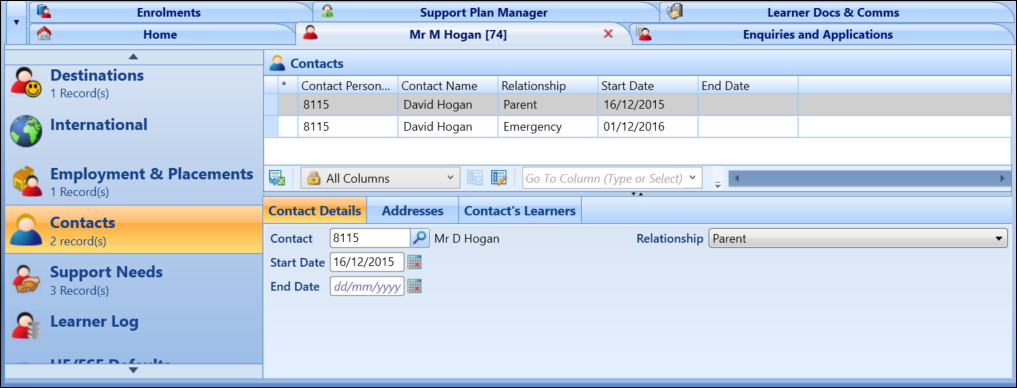
From the Contacts tab, you can:
 View contact details
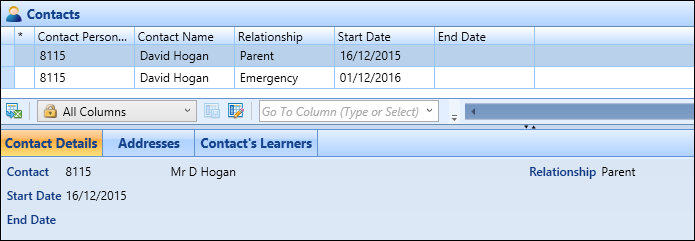
Select the Contact Details sub-tab, and then select the required contact in the grid to display details of the contact associated with the learner.
Add contact details
To add a contact for a learner:
-
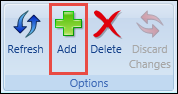
From the Contact Details sub-tab, select the Add button on the Learner ribbon.
-
Enter the required details for the contact in the Contact Details section.

The fields in the Contact Details section are described in the following table.
| This field | Holds this information... |
|---|---|
| Contact | The contact to associate with the learner. Select the Search button to display the Learner Search window, where you can select the required contact. |
| Relationship |
The relationship between the contact and the learner. Select from the drop-down list. Important.Learner contact relationship records are set up in reference data.
|
| Start Date | The start date the contact was associated with the learner. Select the Calendar button to display the calendar, where the required date can be selected. |
| End Date | The end date the contact was associated with the learner. Select the Calendar button to display the calendar, where the required date can be selected. |
| Contact Priority | Optional text field to indicate the order of priority for the contact. |
| Communication Preference | Optional text field with free entry to indicate the preferred method of contact for the contact. |
-
Select Save .
The contact record is added.
Delete contact records
To delete a contact record for learner:
- Select the required contact record in the Contacts grid.
-
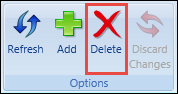
Select the Delete button on the Learner ribbon.
A message is displayed.
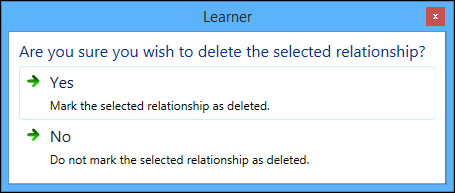
- Select Yes to mark the contact record for deletion.
-
Select Save .
The contact record is deleted.
View contact addresses
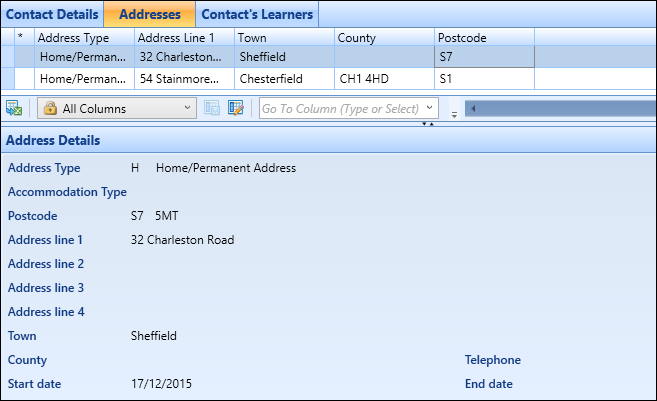
Select the Addresses sub-tab to view the addresses of the selected contact in a read-only view.
View contact's learners
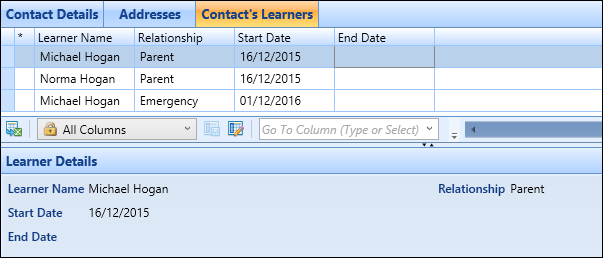
Select the Contact's Learners sub-tab to view any learners the selected contact has been listed as a contact for in a read-only view.